- Log into the server using Remote Desktop.
- Open the start screen (pressing by the Windows key) and type gpedit.msc and open it (Edit group policy)
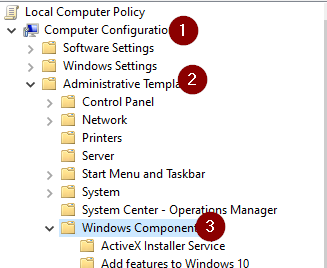
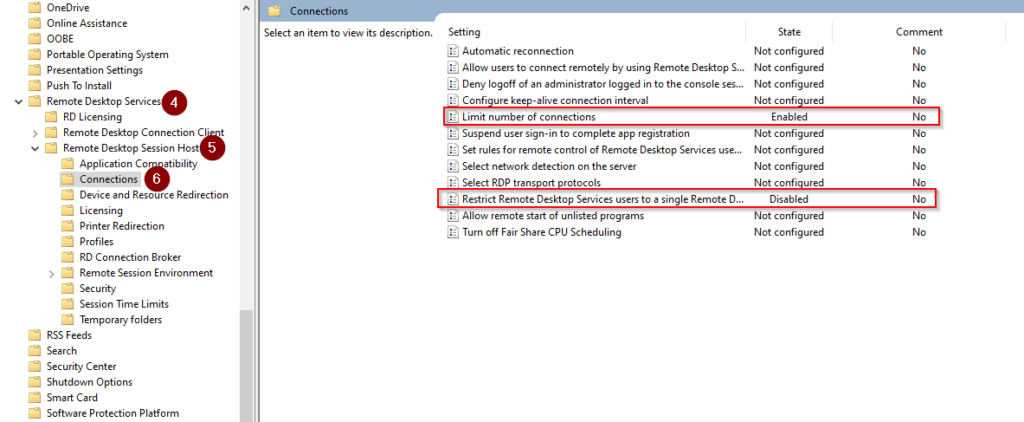
- Go to Computer Configuration > Administrative Templates > Windows Components > Remote Desktop Services > Remote Desktop Session Host > Connections.
- Set Restrict Remote Desktop Services user to a single Remote Desktop Services session to Disabled.
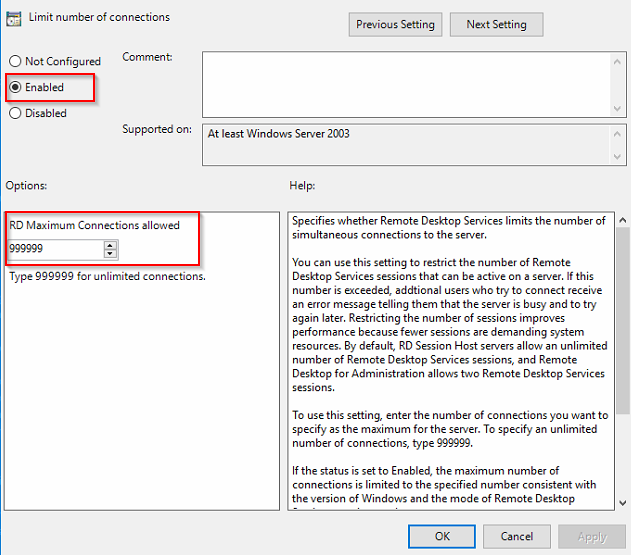
- Double click Limit number of connections and set the RD Maximum Connections allowed to 999999.
Share this content:

Leave a Reply